
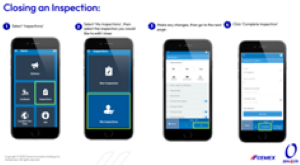
The second Intelex Guide in our new series ‘Intelex Guide on Inspections & Actions’ explains how employees can easily complete inspections and close actions using either the desktop site or the mobile app.
You can access the guide here: Intelex Guide on Inspections
Guide summary:
Closing an Inspection – Desktop
Go to My Tasks, select your inspection, and click Complete Inspection to finalise it.
Closing an Inspection – Mobile
In the app, open Inspections, choose My Inspections, make any updates, then tap Complete Inspection.
Closing an Action – Desktop
From My Tasks, select the action, complete the Action Plan Details, fill in the Completion section, attach evidence, and click Complete Action.
These simple steps help teams keep inspections up to date and ensure corrective actions are properly documented.